Configuring Network Settings
Setting the IP Address
Set the IP address of the product.
- Select the IP address assignment method.
For wired LAN: [Network] > [Wired] > [Mode] in [IPv4] or [IPv6]
For wireless LAN: [Network] > [Wi-Fi] > [Connections] > [Mode] in [IPv4] or [IPv6]
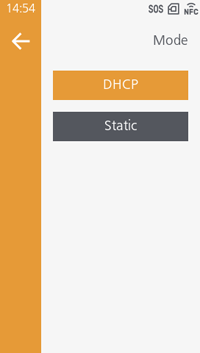
Initial value:- [IPv4]: [DHCP]
- [IPv6]: [Disabled]
- Set and check the IP address in [IP Address].
If you select [DHCP] in [Mode], the IP address acquired from the DHCP server appears.
If you select [Static], enter the IP address manually.
If you are using IPv6 and select [Auto], an IP address is automatically generated.
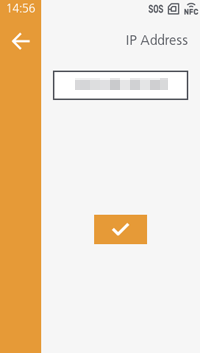
Initial value:- [IPv4]: 0.0.0.0
- [IPv6]: ::

- If you select [DHCP] in [Mode], [Renew Lease] appears. Tap it to update the lease time and get the IP address from the DHCP server again.
- As needed, set the subnet mask, default gateway, prefix length, and DNS server address.
Initial value:- [IPv4] > [Netmask]: 255.255.255.0
- [IPv4] > [Gateway]: 0.0.0.0
- [IPv4] > [Primary DNS]: 0.0.0.0
- [IPv4] > [Secondary DNS]: 0.0.0.0
- [IPv6] > [Prefix Length]: 64
- [IPv6] > [Gateway]: ::
- [IPv6] > [Primary DNS]: ::
- [IPv6] > [Secondary DNS]: ::
Setting the TCP/IP Port
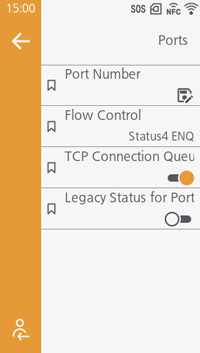
Set the TCP/IP port.
Specify the port numbers to be used for ports 1 to 3 and configure the settings.
The displayed items vary depending on the settings for [Flow Control].
The intended uses for each port are as follows:
- Port 1
When connected to two ports in STATUS4: Receiving print data
When connected to one port in STATUS3/STATUS5: Receiving print data and returning the status - Port 2
When connected to two ports in STATUS4, returning the status - Port 3
When connected to one port in STATUS3/STATUS4/STATUS5, receiving print data and returning the status
Initial value:
- [Port1]: 1024
- [Port2]: 1025
- [Port3]: 9100
- [Flow Control]: [Status4 ENQ]
- [TCP Connection Queue]: Enabled
- [Legacy Status for Port 9100]: Disabled
- [Status4 Cyclic Response]: 500ms
- [BCC]: Disabled

- Each port (1, 2, 3) must be set to different values. Also, set a port number that is not used by any other service.
- When you have enabled [TCP Connection Queue] (initial value), be sure to use one port connection for STATUS3, STATUS4, and STATUS5. Operation using two port connections for STATUS4 is not guaranteed.
- The settings for [TCP Connection Queue], [Legacy Status for Port 9100], and [Status4 Cyclic Response] should typically remain unchanged.
Setting DHCP Options
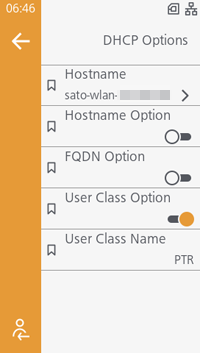
Configure DHCP server options.
This can be set when [DHCP] is selected in [Mode] under [IPv4] or [IPv6].
Initial value:
- [Hostname] (Wired): sato-wired-
- [Hostname] (Wi-Fi): sato-wlan-
- [Name] (Wired): sato-wired-
- [Name] (Wi-Fi): sato-wlan-
- [Suffix]: [Printer Serial]
- [Domain Name]: -
- [Hostname Option]: Disabled
- [Domain Name Option]: Disabled
- [FQDN Option]: Disabled
- [User Class Option]: Disabled
- [User Class Name]: [PTR]
- In [Hostname] > [Name], periods can only be entered as delimiters.
Setting Wireless LAN Connections Manually
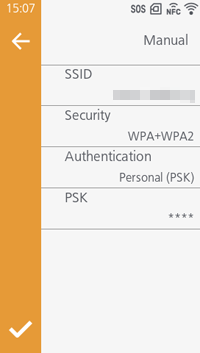
Set the SSID and security authentication for the wireless LAN.
You can select the SSID from the wireless LAN networks displayed on the screen or enter one manually.
The displayed items vary depending on the authentication method used.
Initial value:
- [SSID]: SATO_PRINTER
- [Security]: [WPA3]
- [WEP Authentication]: [Open System]
- [KEY Index]: 1
- [Authentication]: [Personal (PSK)]
- [EAP Mode]: [FAST]
- [192-bits Security]: Disabled
- [Inner Method]: [Auto]
- [Verify Server Cert.]: Enabled
- The range of the key index varies depending on the connected device. If the range of the key index of the device you are connecting to is 0 to 3 and the product is set to "1", set "0" for the device you are connecting to.
- Set the security method so that the product, host and network devices match.
- If [6GHz] is selected in [Band], [Security] is fixed to [WPA3]. ([6GHz] is available only in North America and Japan.)
- Depending on the length of the WEP key, the number of characters you can set for [Key 1] to [Key 4] are as follows:
- When the key length is 64 bits
ASCII: 5 characters
Hexadecimal: 10 characters - When the key length is 128 bits
ASCII: 13 characters
Hexadecimal: 26 characters
- When the key length is 64 bits
- For [PSK], you can enter 8 to 63 ASCll characters or 64 hexadecimal digits.
Setting the Wireless LAN Connection by Using the Push Button or PIN Code Method
To Connect by Using the Push Button Method
- From the settings screen, tap [Interface] > [Network] > [Wi-Fi] > [Connections] > [WPS] > [PBC].
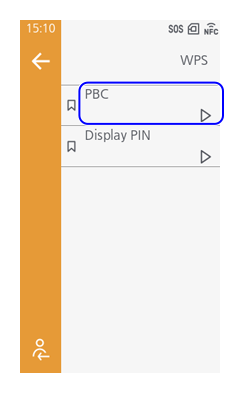
- When the following screen appears, press the WPS button on the access point of the wireless LAN device.
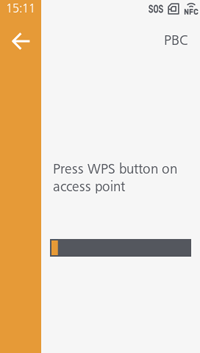
- When the connection to the access point is established, [Connected] appears on the screen.
To Connect by Using the Display PIN
- From the settings screen, tap [Interface] > [Network] > [Wi-Fi] > [Connections] > [WPS] > [Display PIN].
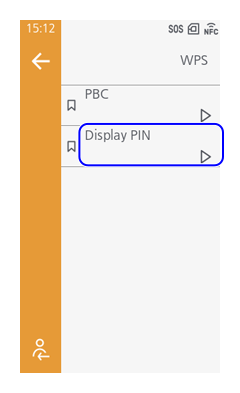
- When the following screen appears, set the PIN code shown on the screen, then access the wireless LAN or computer's access point.
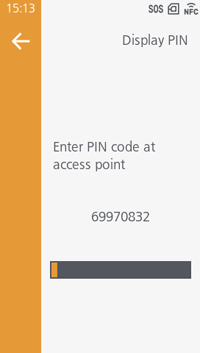
- When the connection to the access point is established, [Connected] appears on the screen.
Using Wi-Fi Direct
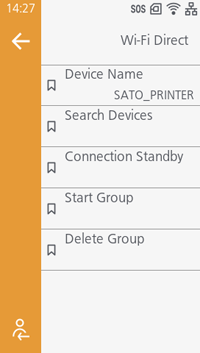
- From the settings screen, tap [Interface] > [Network] > [Wi-Fi] > [Wi-Fi Direct].
- Set the device name for the product in [Device Name].
You can enter 1 to 16 characters. You can use alphabet (capital and small letters), numbers and symbols. - Follow the steps below to connect this product to other devices.
When connecting the product as a client using [Search Devices]- On the product, tap [Search Devices], search for the name of the device you want to connect to, and select it.
- Select the connection method from [PBC] or [Display PIN].
- Complete the connection according to the screen on the product or the Wi-Fi Direct connection screen of the device you want to connect to.
- On the product, tap [Connection Standby].
- Select the product's device name on the Wi-Fi Direct connection screen of the device you want to connect to.
- Complete the connection according to the screen on the product or the Wi-Fi Direct connection screen of the device you want to connect to.
- To start a group, tap [Start Group].
To create a new group, tap [New].
To use an existing group, select the group from the displayed list. - After creating the group, tap [WPS] and select the connection method from [PBC] or [Display PIN].
- Select the product's device name from the Wi-Fi Direct connection screen of the device you want to connect to.
- Confirm on the product's screen that it is connected to the device.
- Tap [Disconnect] if you want to stop the connection.
- [Wi-Fi Direct] appears if you have selected [All] or [2.4GHz] for [Band].
- You can connect a maximum of 32 devices.
- When Wi-Fi Direct is enabled, [Device Name] cannot be changed.
- [Start Group] and [Delete Group] are shown if Wi-Fi is enabled and the product is not connected to a Wi-Fi Direct network.
- If the product is powered off during a persistent group connection, the group will be started automatically after the product is powered on.