Setting Media Profiles
Print settings can be saved for each type of media. This is useful when using multiple types of media.
You can register a maximum of 10 media profiles.
The procedure to create media profiles is as follows.
- From the settings screen, tap [Printing] > [Media Profiles] > [Create].
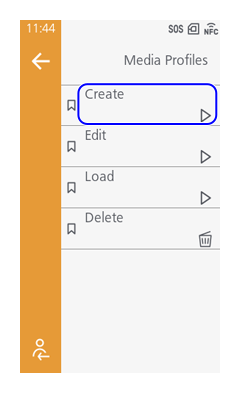
- Set the following setting items according to the screen.
- [Ribbon]
- [Sensor Type]
- [Auto Calibration] (Sensor Adjustments)
- [Speed]
- [Darkness]
- [Label Waste Prevention]
- [RFID Profile] (Only when RFID profiles are registered on an RFID model)
- Tap
 to the lower left on the menu bar to save the setting value.
 - Tap
 on the confirmation screen.
 - Enter the name of the media profile, and tap .
You can enter 1 to 32 characters. You can use alphabet (capital and small letters), numbers and symbols.
A period cannot be input as the first character. If you input any other invalid characters or symbols, the name cannot be confirmed.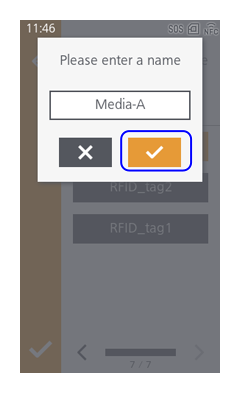

- To cancel the settings you are currently doing, tap
 . Tap on the message to confirm you want to cancel the settings.
 - To edit a registered media profile, tap [Edit], then select the media profile to edit.
- To delete a registered media profile, tap [Delete], then select the media profile to delete.
- You can apply the created media profiles to the product in one of the following ways.
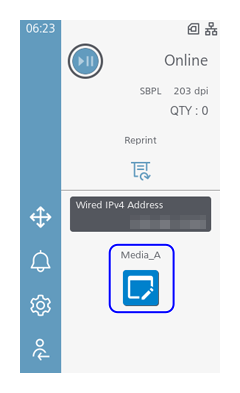
- On the Home screen (Online/Offline) tap the icon of the media profile you created.
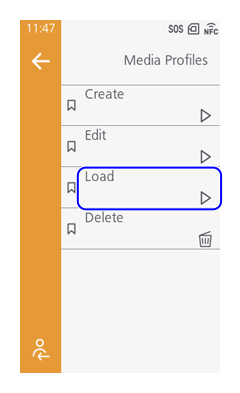
- Select the media profile to be applied from [Printing] > [Media Profiles] > [Load].
- On the Home screen (Online/Offline) tap the icon of the media profile you created.