Setting RFID Profiles
You can register combinations of values, such as optimal antenna position, writing/reading power, and tag offset for each type of RFID tag.
So, if you are using multiple RFID tags, you can easily switch the product's settings.
You can register a maximum of 10 RFID profiles.
For information required for these settings, consult your SATO representative.
Using the Easy RFID Configuration feature of All-In-One Tool allows you to configure RFID settings more efficiently and accurately.
For details, refer to All-In-One Tool V2 User's Manual.
The procedure to create RFID profiles is as follows.
- From the settings screen, tap [RFID] > [RFID Profile] > [Create].
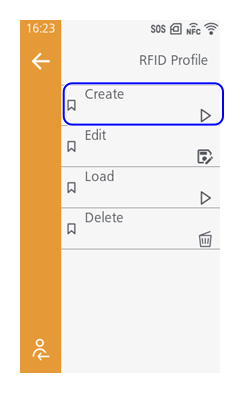
- Set the following setting items according to the screen.
- [Antenna Type]

- [Antenna Position]

- [Antenna X Pos.]
- [Antenna Y Pos.]
- [Write Power]
- [Read Power]
- [Encoding Action]
- [Tag Offset]
- [Pitch Size]
- [Antenna Type]
- Tap
 to the lower left on the menu bar to save the setting value.
 - Tap
 on the confirmation screen.
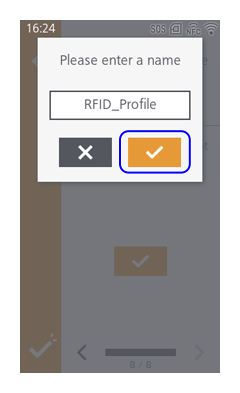
 - Enter the name of the profile, and tap
.
You can enter 1 to 32 characters. You can use alphabet (capital and small letters), numbers and symbols.
A period cannot be input as the first character. If you input any other invalid characters or symbols, the name cannot be confirmed.

- To cancel the settings you are currently doing, tap
 . Tap
on the message to confirm you want to cancel the settings.
. Tap
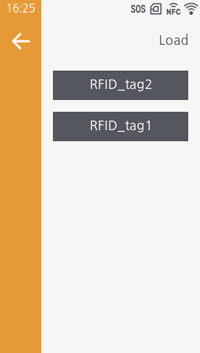
on the message to confirm you want to cancel the settings. - To read a registered RFID profile and apply the settings, tap [Load].
Tap the RFID profile to be applied and tapon the confirmation screen.
- To edit a registered RFID profile, tap [Edit], then select the RFID profile to edit.
- To delete a registered RFID profile, tap [Delete], then select the RFID profile to delete.