Customizing the Display
Changing Text Size, Screen Color, and Brightness
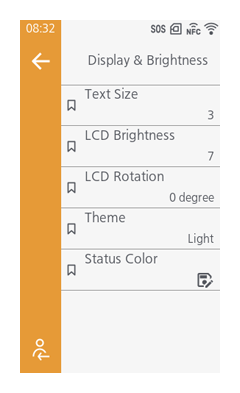
[System] >[Display & Brightness]
Displaying Widgets
The values of the product's current settings, any messages, and more can be displayed on the Home screen.
The procedure to create a widget is as follows:
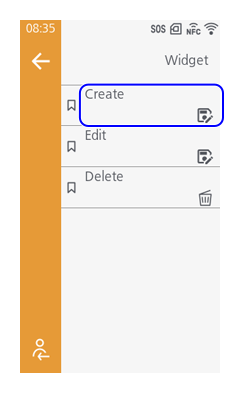
- From the settings screen, open [System] > [Home Screen] > [Widget] > [Create].
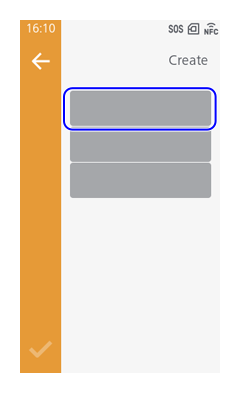
- Tap 1 of the gray boxes.
- Tap [Type] and set the type of item you want to be displayed.
If you want a message to be displayed, select [Custom] and register the title of the widget and any message.
If you want the value of a setting to be displayed, select [Setting Reference] and select the setting name you want to display from the list.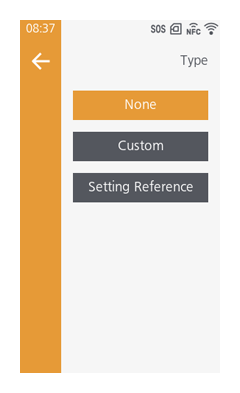

- A maximum of 3 widgets can be registered as one group.
- Tap
 to return to the previous screen and tap
  , on the lower left of the menu bar, to save the settings.
 - Tap
 on the confirmation screen.
 - Enter the name of the widget, then tap .
The name of the widget will not appear on the Home screen. In addition, names that have already been registered cannot be used.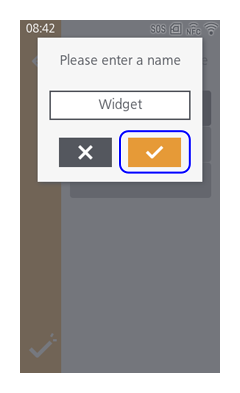

- To edit a widget, tap [Edit] and select the name of the widget to be edited.
- To delete a widget, tap [Delete] and select the name of the widget to be deleted.
- You can also delete widgets from the menu bar on the Home screen. Additionally, you can move widgets on the Home screen from the menu bar. For more information, see Menu Bar.
Showing Counts on Screen
[System] > [Show Total Count]
The total print count from the time the product is turned on until it is turned off is displayed on the screen.
The number of pages printed is shown in parentheses to the right of [QTY] on both the Online and Offline screens.
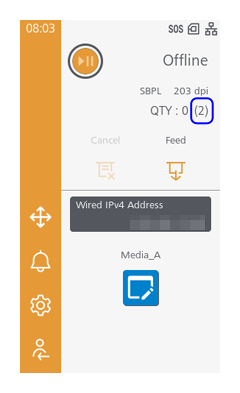
- When you turn off the product, the count is reset to [0].
Initial value: Disabled