Operations in the Error Screen
When an error occurs on the product, the LED indicator lights red and messages and operation buttons corresponding to the error appear on the display.
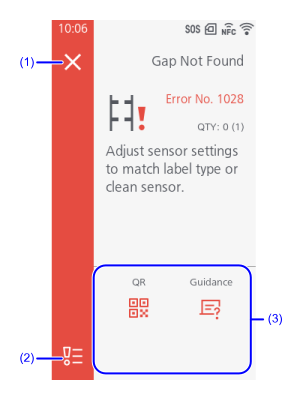
- Closes the Error Screen. Switch to Offline mode while leaving the print job as is.

- Depending on the nature of the error, it may not be displayed.
- Displays a list of errors that have occurred.
- Operation buttons that can be executed during the displayed error appear.
You can perform the following operations by using the operation buttons.- [Settings]: Display the settings menu
- [Video]: Play a guidance video
- [QR]: Display QR codes (when SOS (SATO Online Services) is enabled)
For more information, see QR Code. - [Guidance]: Display error guidance
Provides detailed animated instructions on how to resolve issues. - [Cancel]: Cancel print jobs
- [Retry]: Execute the retry/release operation set in [Retry Mode]
- [Apply]: Apply settings
- [Cutter]: Move cutter blade to the specified position
- The available operations vary, depending on the situation and the errors that appear.
QR Code
Tap [QR] on the error screen to display a QR code that can be scanned by the specialized SOS app.
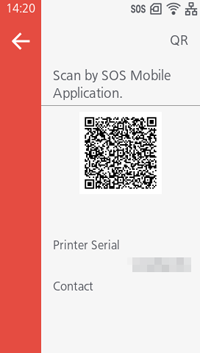
When you open the specialized app on a tablet or smartphone and scan the QR code, the error information will be sent to the SOS cloud, allowing you to receive support.
 (Japan only)
The initial phone number that is displayed is a direct line to the SOS technical support. To find out how to resolve the error over the phone, tell the operator the printer serial and error number that appears on the screen.