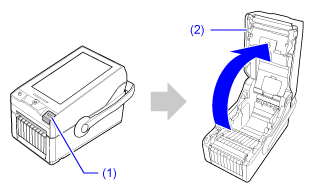
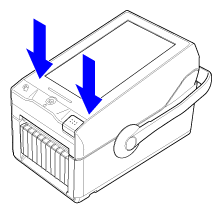
TOP > Getting Started > Installation > Installing the Options > Installing the Optional Wireless LAN/Bluetooth Kit Installing the Optional Wireless LAN/Bluetooth Kit View the video here (it has no audio). • Do not connect or disconnect the power cord while your hands are wet. Doing so could cause an electric shock. • Do not touch the terminals with wet hands. View the video below for the procedure. 1. Make sure that the product is powered off, and disconnect the power cord from the AC outlet or remove the optional battery. 2. Press the cover open button (1) to open the top cover (2). 3. Pull down the hook to open the cover for the place where the wireless LAN/Bluetooth kit is to be installed. 4. Align the projections of the wireless LAN/Bluetooth kit to the position inside the cover. 5. Slightly tilt the top cover and insert the wireless LAN/Bluetooth kit. Make sure that the angle that the top cover is opened (A) is 50° or less.6. Open the top cover again and close the cover for the place where the wireless LAN/Bluetooth kit is to be installed. • If the cover does not close, open the top cover to an angle of 50° or less, pull out the wireless LAN/Bluetooth kit, and redo the procedures from step 4.7. Close the top cover. Push both ends of the top cover, and close it firmly until it clicks. • When closing the top cover, be careful not to pinch your fingers. • If the Wi-Fi icon () and the Bluetooth icon () icon do not appear in the Settings menu, try again.• After installation, check that the product is functioning properly and put the sticker that came with the wireless LAN/Bluetooth kit on the back of it. Back to top