Displays and Operations in the Home Screen
While the product is powered on, you can switch to the Home screen by pressing the
 button.
The Home screen displays different screens depending on whether the product is in Online mode or Offline mode.
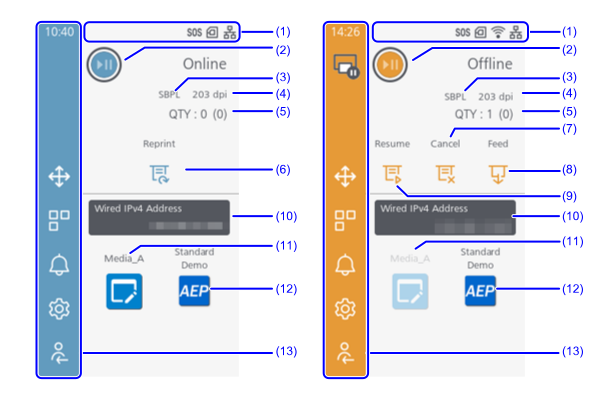
- Status bar
Icons that indicate the product' s status is displayed. For more information, see Checking the Product's Status (Status Icon). - Switch between Online mode and Offline mode
Tap the icon on the screen or press the button to switch between Online mode and Offline mode.
- Current printer language
Regarding available printer languages, see Switching Commands Automatically. - Resolution of the product
- Number of pages in the print job being processed
When [System] > [Show Total Count] in the settings menu is enabled, the total number of pages printed since the power was turned on is shown in parentheses. - Reprint
The previous data can be printed again.
Appears if the [Printing] > [Advanced] > [Reprint] in the settings menu is enabled. - Cancel
Cancel the print job. Disabled when there are no print jobs. - Feed
Feeds the media. - Resume
Resumes printing. Displayed when the print stop request command DLE is received and printing has stopped. - Widget
The widget created in [System] > [Home Screen] in the Settings menu will be displayed.
For more information, see Displaying Widgets. - Media Profile
The media profile (a combination of media type and media settings) created in [Printing] > [Media Profiles] in the settings menu will be displayed. Tap it to apply the media profile settings to the product.
For more information, see Setting Media Profiles. - Application
Applications for AEP will be displayed.
Appears if the [Applications] > [AEP] in the settings menu is enabled. - Menu Bar
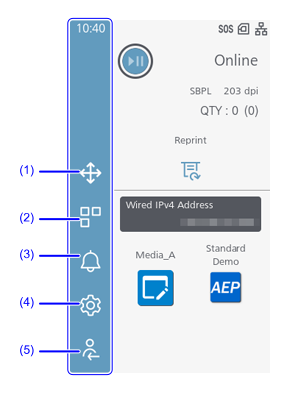
Menu Bar
-
Move/Delete Items
Move or delete applications, widgets, and media profiles on the Home screen. -
Application Control
Switch between running applications. -
Notification
Notification of when it is time to clean or replace consumable parts and notifications about the condition of the product will be displayed. -
Settings Menu
Display the settings menu. -
Login
Log in to the product as an administrator.

- Buttons on the menu bar can be operated from either the Online screen or Offline screen.
(1) Move/Delete Items
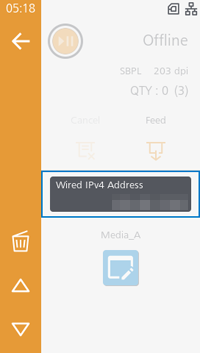
Tap the item on the Home screen that you want to move or delete to select it.
Tapping
 or
or
 moves items up or down. Tap
 to save the changes.
Tapping
 deletes items.
- If passwords are enabled, you must log in to the product as an administrator to move or delete items on the home screen. For more information, see (5) Login.
(2) Application Control
A list of the running applications is displayed.
You can switch applications or close them.
(3) Notification
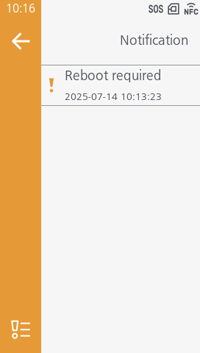
Tap any notification to display detailed information.
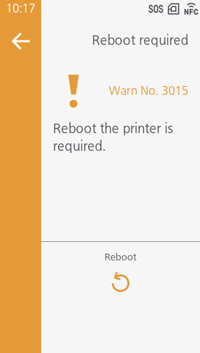
The operation buttons appear according to the content of the notification.
You can display settings, restart the product, play help videos, display QR codes, execute cuts, cancel printing, clear counts, and more.
If a new notification occurs while operating the product, a notification banner will be displayed at the top of the screen.
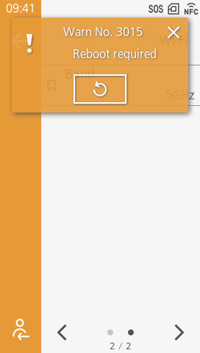
Tapping the notification banner allows you to confirm the details of the notification.
(4) Settings Menu
For more information, see the descriptions for each Settings menu.
- If passwords are enabled, you must log in to the product as an administrator to enter the settings screen. For more information, see (5) Login.

- An incorrect power on/off operation may damage the product settings. It is always recommended to use the power button to allow proper shutdown of the product and ensure changes made to menu settings are saved appropriately.
(5) Login
Log in to do operations that require administrator privileges, such as setting passwords.
The login procedure is as follows:
- Tap
 on the Online or Offline screen.
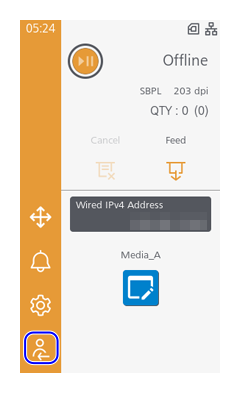
- You can also log in from the settings screen.
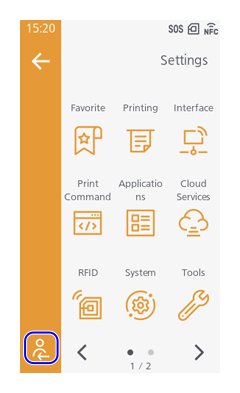
- You can also log in from the settings screen.
- Enter the [User ID] ("manager") and password, then tap
 .
.
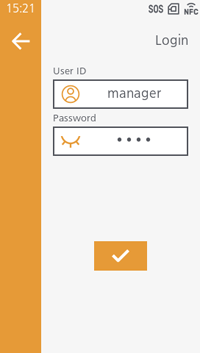
- The initial password is assigned uniquely for each product. Check the labels included with the product.
- Tap the eye icon to view the password being entered.
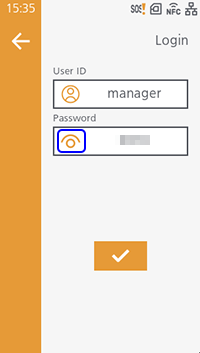
- After logging in, tap
 and confirm that "manager" is displayed on the account screen.
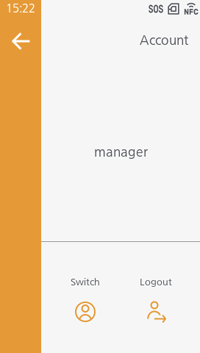
- Tap
in the upper left of the screen to return to the previous screen.
Online Mode and Offline Mode
Online Mode(LED indicator: lights up in blue)
Printing can be executed in this mode.
Offline Mode(LED indicator: lights off)
Printing is stopped in this mode.
- To adjust the print settings during printing
Press thebutton during printing and tap
 when printing has stopped.
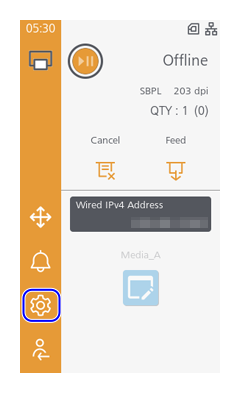
Select an item and adjust the setting.
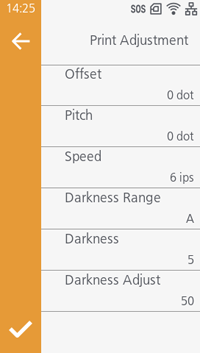
- The [Print Adjustment] screen appears when print data is available.
To resume printing, press the
button again. -
To cancel during printing
Press the
button while printing, and then tap [Cancel] when printing has stopped.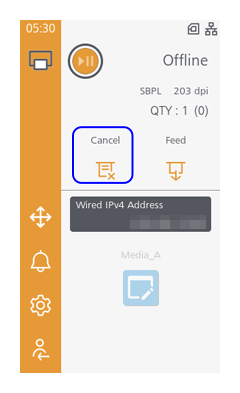
Select [Current Data] or [All].
- If printing multiple sheets in succession, printing stops when the job currently being printed is completed.