Load the Ribbon (When Printing by Using a Ribbon)
You need to load the ribbon when printing by using ribbon. The topics here explain how to load and replace the ribbon.
You can also check the procedure in the video. (Ribbon loading)

- The direction in which the ribbon it winding can be confirmed by applying adhesive tape to the inside of the ribbon. If ink adheres when the tape is peeled off, ink has been applied to the inside (face-in).
When the ink side is facing out (face-out ribbon)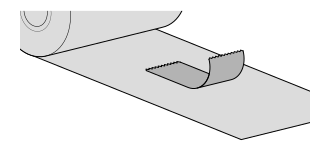
When the ink side is facing in (face-in ribbon)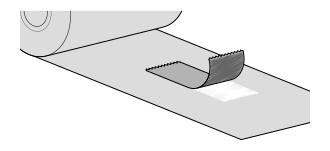
The product is compatible with both face-out and face-in. For more information, see Ribbon.
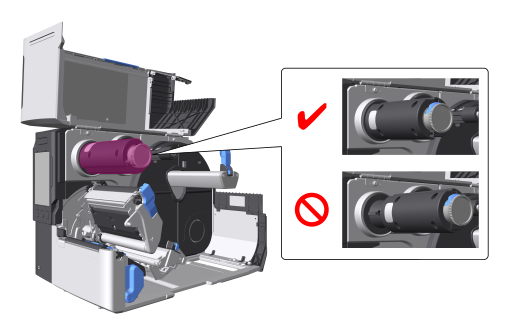
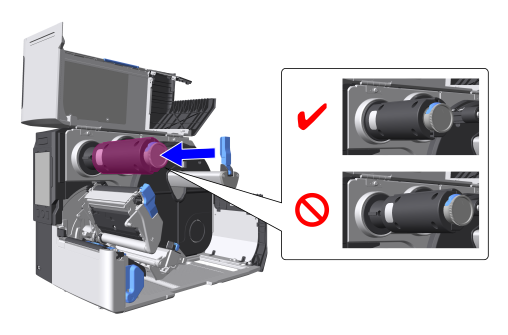
- Make sure that the ribbon rewind spindle is pushed all the way in.
- Load the ribbon so the ink side of the ribbon is facing the rear of the printer and it is fully onto the ribbon supply spindle.
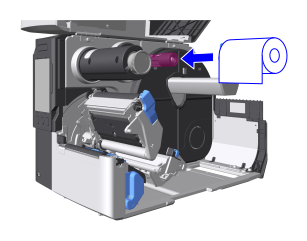
The figure shows a face-in ribbon - Pass the ribbon under the print head.
The ribbon should pass over the media sensor guide.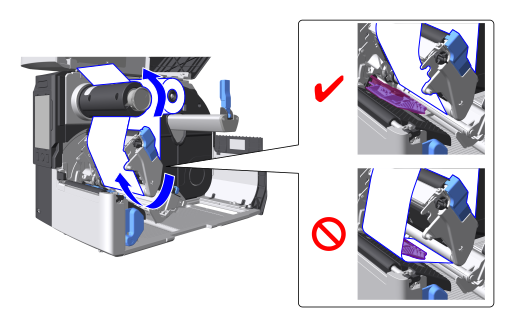
- Wrap the ribbon around the ribbon rewind spindle in a counterclockwise direction.
Put the ribbon on the grip sheet and wind it around the spindle several times to the left.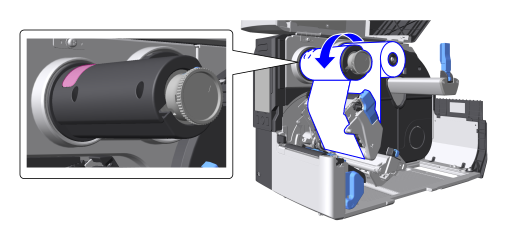
When you have finished loading the ribbon, the path should look as shown below.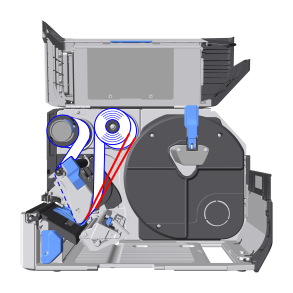

Face-in ribbon
Face-out ribbon - If media has already been loaded, push the head assembly downward until it "clicks" into place.If no media has been loaded, then load the media.

- When pushing the head assembly downward, be careful not to pinch your fingers.
- Close the top cover.

- When closing the top cover, be careful not to pinch your fingers.
To Replace the Ribbon
- Press the button at the tip of the ribbon rewind spindle and pull out the ribbon rewind spindle.
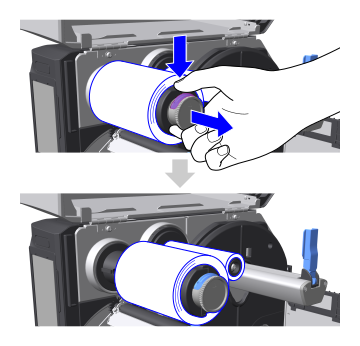
- Remove the used ribbon from the ribbon rewind spindle.
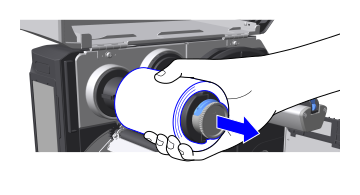
- Push the ribbon rewind spindle all the way in.
- Remove the used ribbon core from the ribbon supply spindle.