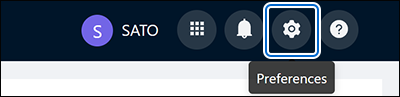
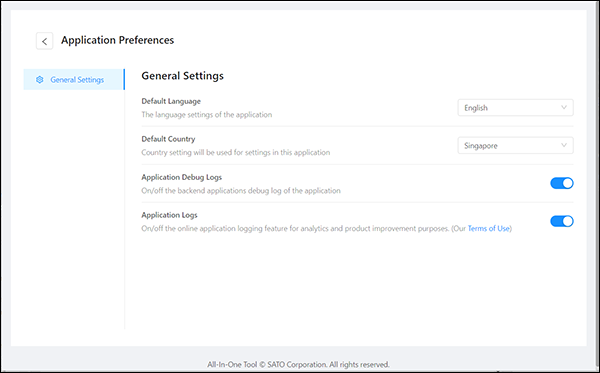
• Click thebutton on the upper left of the [Application Preferences] page to return to the printer page.
The initial setting of the [] is based on the operating system language and the supported languages.If the operating system language is other than the supported languages, English will be set as the [].
•
By default, the log file is created at the “AIOTv2Log” folder under users’ “Documents” folder, i.e. UserPath\Documents\AIOTv2Files\AIOTv2Log, where the UserPath is the path of the current PC user.In case of reporting bugs or problems, users should enable [Application Debug Logs], run the application to recreate the issue and provide the log file to customer support for help.The [Application Debug Logs] is default set to disable. Click the toggle switch to change the setting to enable.With the [Application Logs] enabled, you have given the company your consent to use the access information it has collected for the maintenance of the All-In-One Tool and for statistical analysis of how the All-In-One Tool is used to provide better services.
• [Personal Printer List]: Printers added to this list are accessible only from your Windows user account.
• [Shared Printer List]: Printers added to this list are accessible from all Windows user accounts on this PC. This option is useful when multiple users use the same PC.When you change the setting, a confirmation dialog appears. Review the message for the selected option, and then click [OK] to confirm.
•
•
• Enabled: The application automatically updates printer status at regular intervals.
• Disabled: Regular status updates stop. Theicon is available so that you can manually refresh the printer status.
Theicon is available on:
Click theicon to update the printer status. Last Refreshed shows the date and time when the printer status was last refreshed.
On the Printer Settings and Printer Tools pages, click theicon to update the printer status. Hover over the
icon to view Last Refreshed, which shows the date and time when the printer status was last refreshed.
Last Modified shows the date and time of the most recent change made by user to the Application Preferences page.