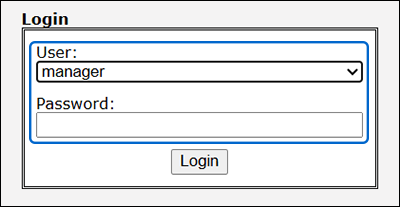
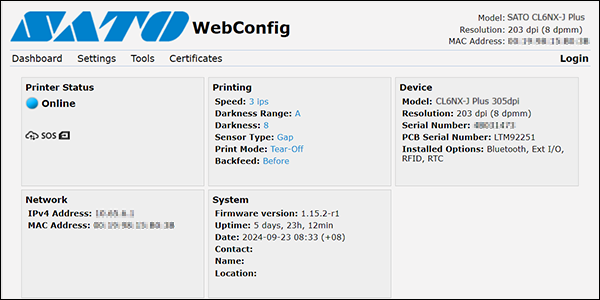
TOP > Getting Started > Adding a Printer > Adding a Printer Manually via Supported Interface Setting > Configure Printer Security Settings in Web Configuration Configure Printer Security Settings in Web Configuration Verify Printer Encryption Status Enable/Disable Printer Login on Printer Page Access and Log in to the Web Configuration(For CL4NX/CL6NX/CL4NX-J/CL6NX-J/CL4NX Plus/CL6NX Plus/CL4NX-J Plus/CL6NX-J Plus series printer with firmware version 1.16.0 or later). Access the printer from your browser to configure the printer settings from a remote location. • To access the web configuration screen, the printer must be connected to a wired LAN or wireless LAN. 1. Enter "https://printer IP address" in the browser's address bar.If the printer IP address is 192.168.143.123, enter the following URL: https://192.168.143.123. • When a security certificate is prompted, you must acknowledge and click Continue.2. Select "manager" from the [User] drop-down list and enter the [Password].3. Click [Login].Upon login, the web configuration page is opened. Verify Printer Encryption StatusEnable/Disable Printer Login on Printer Page Related TopicsShowing and Editing Printer InformationAdding a Printer Manually via Supported Interface SettingAdding a Printer via Auto-Discovery Setting