TOP > Getting Started > Installation
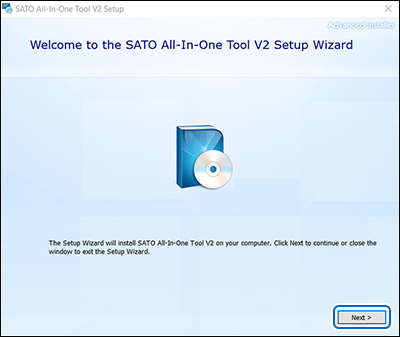
1.
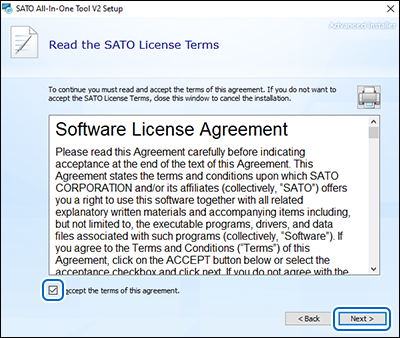
2.
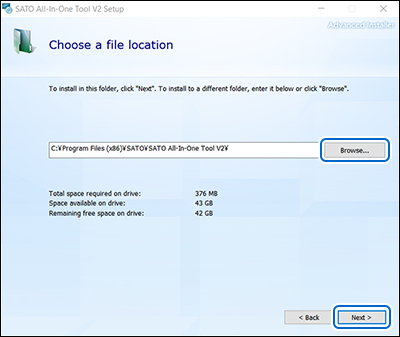
4.
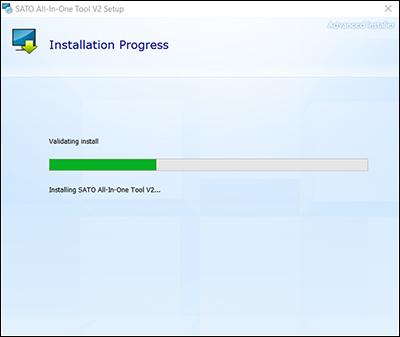
5.
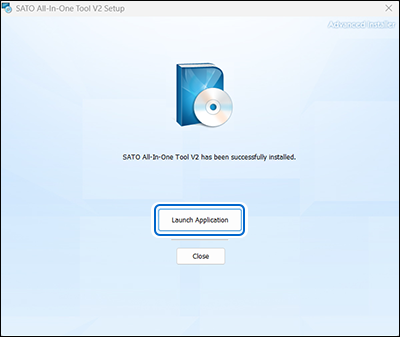
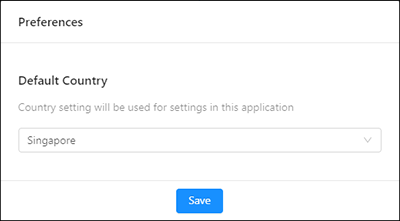
• You can also open the application by clicking the Windows [Start] button and select [SATO] > [SATO All-In-One Tool V2] to open the SATO All-In-One Tool V2 application.When you launch the SATO All-In-One Tool V2 application for the first time after installation or after updating from an older version to V2.6.0 or later, the [Preferences] dialog box will appear.
6.
•
• If the application is closed without clicking the [Save] button, the dialog prompt will appear the next time the application is launched.
7.
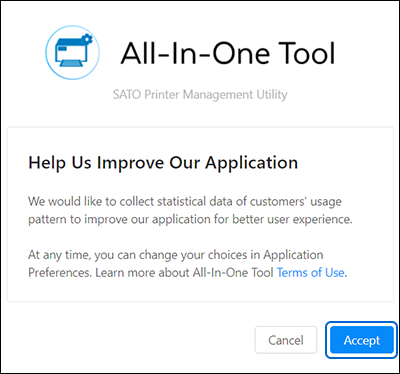
• You can change your preference and disable the [Application Logs] setting on the [Application Preferences] page.