TOP > Various Menus of the Application > The [Others] Menu > Saving and Applying Configuration > Applying the Saved Configuration File to the Printer
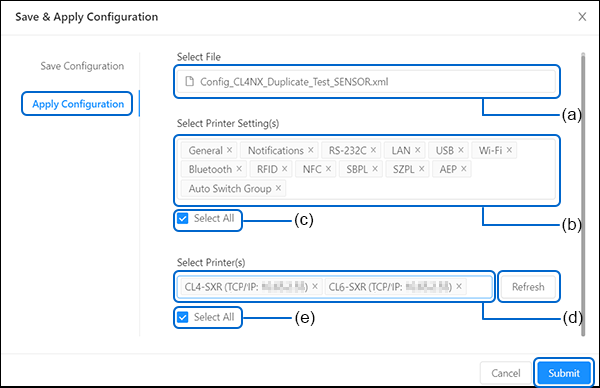
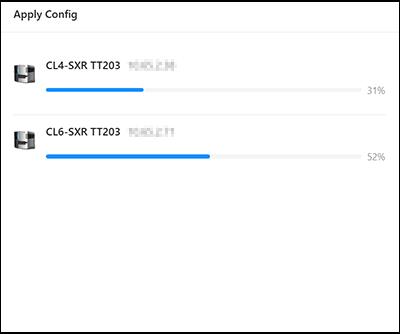
1. On the [Apply Configuration] tab menu, click the file insert box (a) and select the XML file previously saved.
2.You can have multiple selections of the printer settings or select the [Select All] check box (c) to select all the printer settings on the list.
3. Click the [Select Printer(s)] drop-down list (d) and select the available printers of the selected printer series.
•
4.
1.
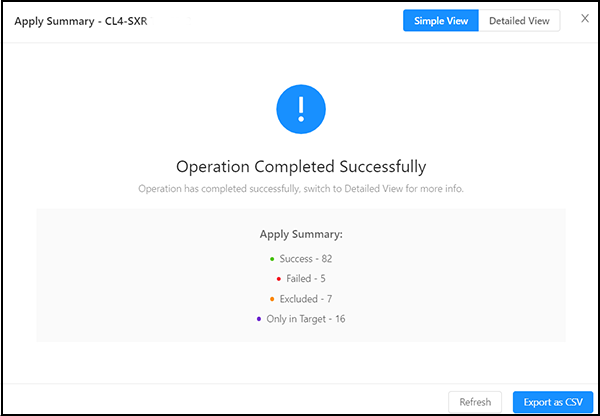
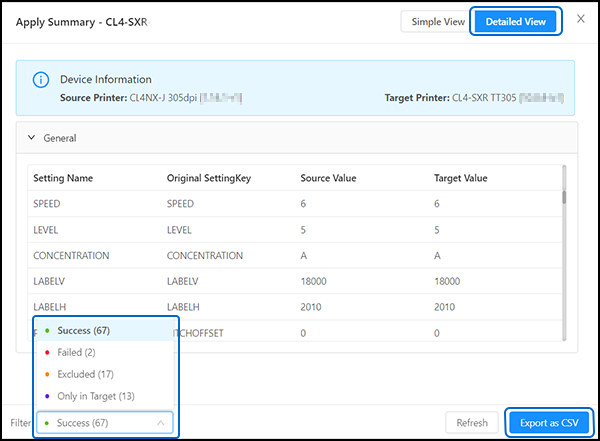
2.To [Filter] the summary results, select one of the following option: [Success], [Failed], [Excluded], or [Only in Target].
◦
◦
◦ Click [Excluded] to filter settings that are not applied to the target printer because some of them may cause potential issues to the printer.
◦ Click [Only in Target] to filter settings that exist only in the target printer. These are new settings that do not exist in the source printer and will not be applied to the new printer.
3.
•
•
•
•
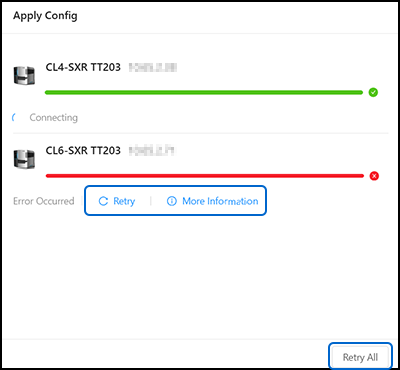
• [Retry]: Allows users to retry when settings fail to apply, or when the system fails to connect or reboot.
•
• [Retry All]: Allows users to retry applying failed settings when multiple printers are in an error state, including fails to connect or reboot. If multiple printers fail for different reasons, selecting [Retry All] will retry each printer based on its respective failure reason.
•