SATO

MENU

How to Search

MENU

  • TOP (Table of Contents)
  • Introduction
  • Getting Started
  • Navigating the Application
  • Various Menus of the Application
  • Searching by Function Names
  • View in PDF
Close
SATO All-In-One Tool V2 User Manual
TOP > Various Menus of the Application > The [Others] Menu > Saving and Applying Configuration > Saving the Configuration File
Saving the Configuration File
An SBPL command will be executed to retrieve the printer configuration of the selected printer.
1.
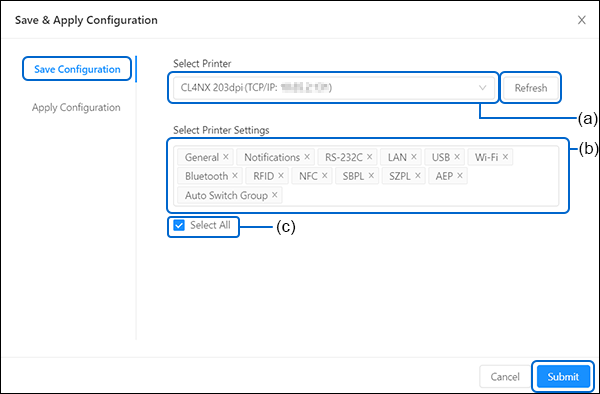
On the [Save Configuration] tab menu, select the source printer (a) and the printer settings (b) to be saved.
Click the drop-down list and select the options. You can have multiple selections of the printer settings or select the [Select All] check box (c) to select all the printer settings on the list.
 
•
For CL4NX, CL4NX-J, CL4NX Plus, CL6NX Plus, CL4NX-J Plus, CL6NXJ Plus printer series with firmware version 1.16.0 or later, you must sign in before selecting a printer. If a printer shows [Not Logged In] status, close the function, sign in, and then reopen it to select the printer. Printer selection is also unavailable for printers with [Invalid] or [Not Connected] status.
•
To update the printer list, click [Refresh].
2.
Click [Submit].
The information is then saved into an XML file specified by the user.
 

Related Topics
The [Others] Menu
Applying the Saved Configuration File to the Printer
Saving and Applying Configuration

Top

Back

© 2026 SATO Corporation. All rights reserved.