TOP > Getting Started > Unlock the Printer LCD > Unlock the Printer LCD When the Printer Is Added to the Printer List
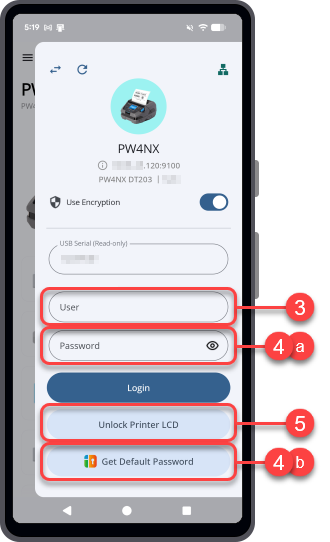
[Unlock Printer LCD] appears in the Printer Connection and Access panel when you have not logged in to the printer from the application.
[Unlock Printer LCD] does not appear in the Printer Connection and Access panel for CL4-SXR and CL6-SXR series printers or for printers that do not support the printer login feature.
1.
On the [Printer] page, tap the printer that you want to use.
2.
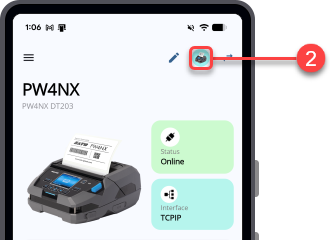
On the dashboard, tap the printer icon to open the Printer Connection and Access panel.
3.
In the Printer Connection and Access panel, enter the [User] access level.
If you are not logged in to the SATO ID AUTH account, [Get Default Password] is not available.
2) Tap [Get Default Password].
For global users: Global Helpdesk.
For users in Japan: Japan Helpdesk.
5.
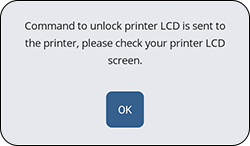
Tap [Unlock Printer LCD].
 

Top

Back