SATO

MENU

How to Search

MENU

  • TOP (Table of Contents)
  • Introduction
  • Getting Started
  • Adding Printers to the Printer List
  • Logging in to the Printer
  • Navigating the Application
  • Various Functions of the Application
  • View in PDF
Mobile SATO All-In-One Tool V2 User Manual
Close
TOP > Getting Started > Logging in to SATO ID AUTH
Logging in to SATO ID AUTH
SATO ID AUTH give users the convenience of signing on to SATO applications with a single set of ID and password. Users only need to sign in once with SATO ID AUTH account, Google or Microsoft account to access the different applications and services.
Mobile All-In-One Tool application equipped with the SATO ID AUTH login feature for logging in to the registered printer for performing the various functions and configurations.
 
•
Make sure your account (such as gmail.com, or outlook.com) is pre-registered in the SATO ID AUTH portal to enable successful login.
1.
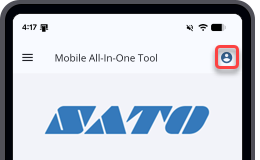
On the upper right of the Home page, tap .
2.
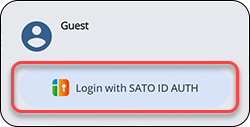
Tap the [Log in] button.
The SATO ID AUTH page will open on your default browser.
3.
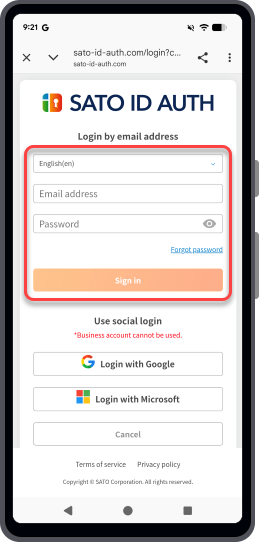
On the SATO ID AUTH page, select your preferred language, enter your registered email address and password. Then tap the [Sign in] button.
4.
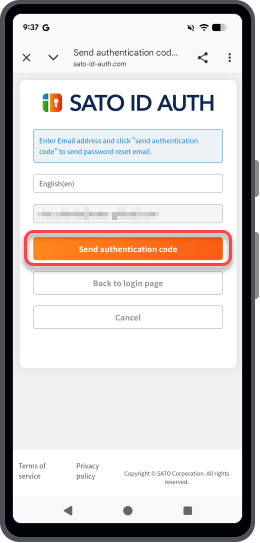
Tap [Send authentication code].
5.
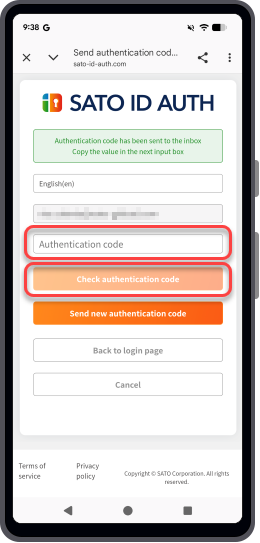
You will receive an email with the authentication code sent from the system. Check your mailbox to retrieve the code.
6.
Enter the authentication code in the provided field.
7.
Tap [Check authentication code].
 
•
If you do not receive the code within a few minutes, tap [Send new authentication code] to request a new one.
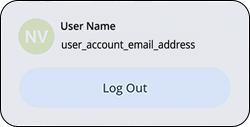
Upon successful login, the logged in dialog is displayed.
 

Related Topics
Home Page Overview

Top

Back

© 2026 SATO Corporation. All rights reserved.