SATO

MENU

How to Search

MENU

  • TOP (Table of Contents)
  • Introduction
  • Getting Started
  • Adding Printers to the Printer List
  • Logging in to the Printer
  • Navigating the Application
  • Various Functions of the Application
  • View in PDF
Mobile SATO All-In-One Tool V2 User Manual
Close
TOP > Getting Started > Retrieve the Default Password
Retrieve the Default Password
By tapping your Android device or iPhone on the printer's NFC antenna, you can retrieve the unique default password for the printer login feature. This feature is available only when you are logged in to the application with a SATO ID AUTH account.
 
•
This feature supports only printers configured with a unique default password.
Prerequisite:
•
Make sure NFC is turned on on the Android device. (On iPhone, NFC is always on.)
•
Make sure you are logged in to the application with your SATO ID AUTH account on the [Home] page.
1.
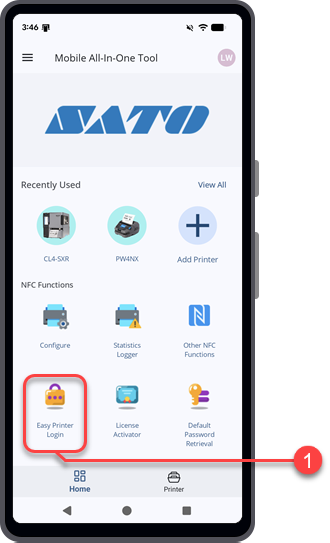
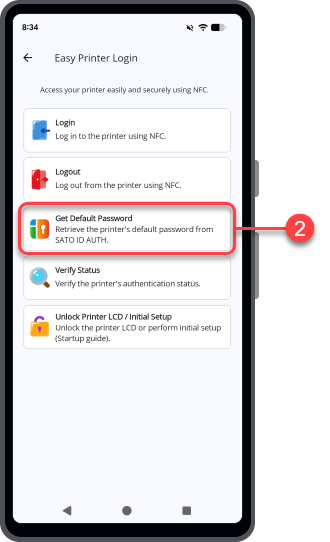
On the Home page, tap the [Default Password Retrieval] icon.
The [Default Password Retrieval] screen appears.
2.
Tap [Scan printer] at the bottom of the screen.
3.
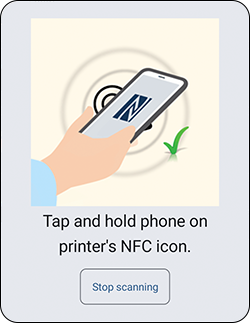
Hold the Android device or iPhone close to the printer's NFC antenna. The NFC antenna location is marked with a symbol.
 
•
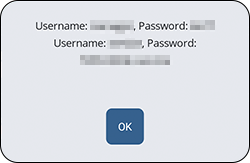
Do not move the Android device or iPhone away from the printer until the screen displays the password retrieval information.
4.
Select the [User] access level.
5.
Tap [Retrieve Password] to display the unique default password.
 

Related Topics
Home Page Overview
Logging in to the Printer

Top

Back

© 2026 SATO Corporation. All rights reserved.