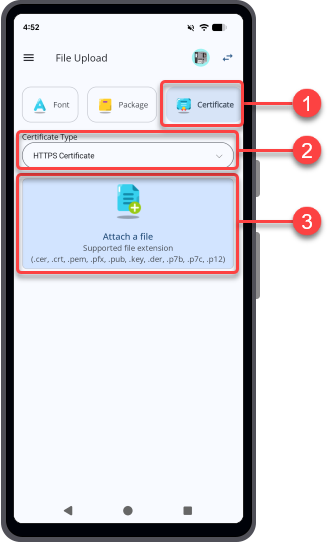
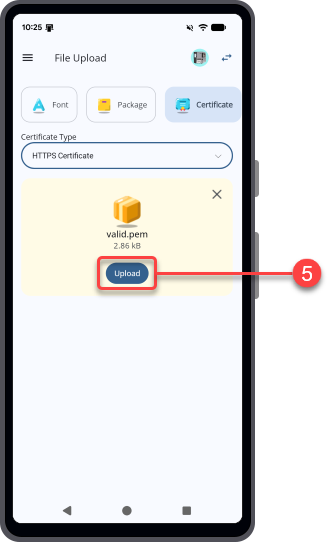
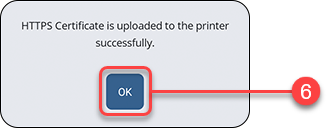
TOP > Various Functions of the Application > File Upload > Certificate Upload Certificate Upload Users can upload security credentials (for example, certificates or public keys) to the printer for secure communication and authentication. Supported types include:• HTTPS Certificate• Wi-Fi Root CA• Wi-Fi Client Certificate• Wi-Fi Private Key• Wi-Fi EAP-FAST PAC File• FTPS Certificate• SFTP Public KeyAvailable certificate types vary depending on the connected printer model. 1. On the [File Upload] screen, tap [Certificate] to display the certificate upload screen. 2. Select the [Certificate Type] from the drop-down list.3. Tap [Attach a file]. The file manager is displayed, showing the files in the default folder.4. On the folder screen, select the certificate or public key file you want to upload to the printer. Supported file extensions are: .cer, .crt, .pem, .pfx, .pub, .key, .der, .p7b, .p7c, and .p12.The selected certificate or public key file is displayed on the certificate upload screen. • You can tap to remove the selected file and choose a different one.5. Tap [Upload]. A dialog appears after the file is uploaded successfully to the printer.6. Tap [OK] to finish the upload.