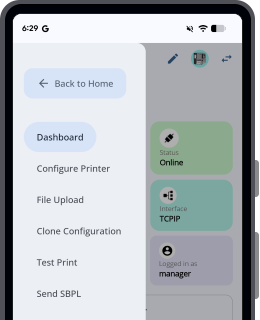
Side menu (Dashboard)
TheTap[Back to Home]

Switch printer icon
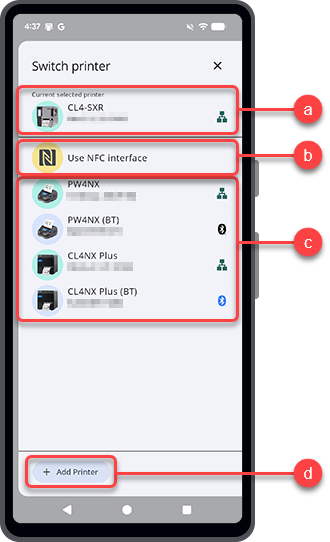
From this panel, user can easily switch to select a printer from the existing [Printer] list, select NFC interface, or add a new printer to the [Printer] list.[Current selected printer]
[Use NFC interface]
Tap [Use NFC interface] to transfer data between your Android device or iPhone and the printer using NFC.Printer list
[Add Printer]
Printer icon
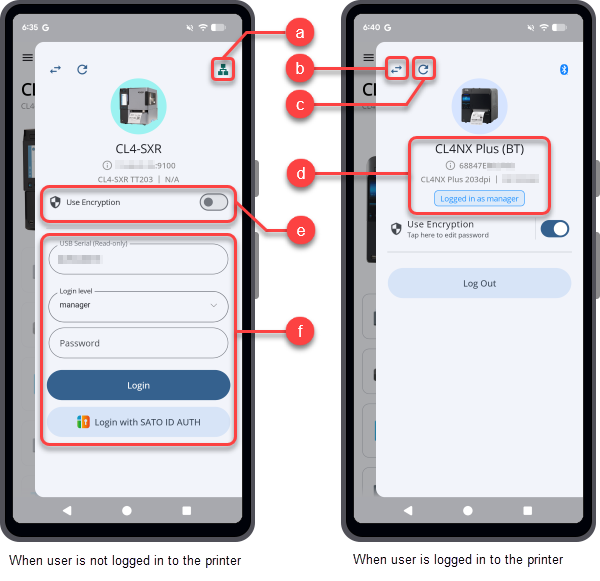
Tap the printer icon to open the Printer Connection and Access panel.The Printer Connection and Access panel displays connection-related information for the selected printer. This includes the connected interface, login status, and available access options, if supported by the printer.Tapto refresh the printer status.
TCP/IP Encryption setting
Printer access options
The Printer Access and Connection panel shows available access options for the selected printer. The displayed option depends on the printer login status and connection status.For more information about logging in to the printer, refer to Log In to the Printer When the Printer Is Added to the Printer List.For more information about unlocking the printer LCD, refer to Unlock the Printer LCD When the Printer Is Added to the Printer List.

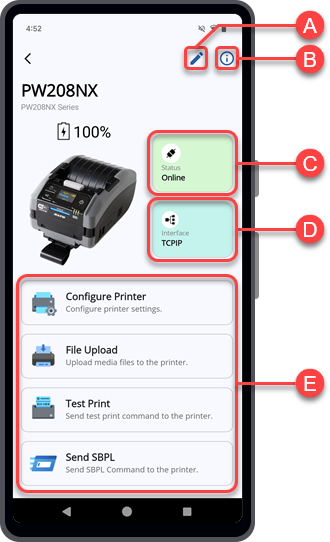
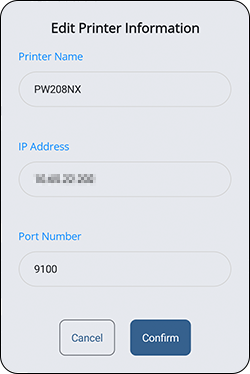
Edit icon
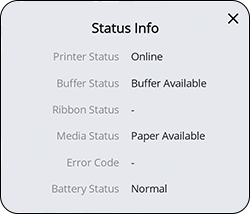
Tap[Status] button
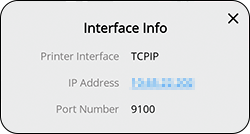
[Interface] button
Login status button
Function buttons
[Configure Printer]
[File Upload]
[Clone Configuration]
[Test Print]
[Send SBPL]
[Statistics Logger]
[Easy Printer Login]
[License Activator]
[Easy RFID Configuration]
[Default Password Retrieval]
[Default Password Retrieval] appears only when the NFC interface is selected and you are logged in to the application with your SATO ID AUTH account.